Recipe Editor
The Recipe Editor Window allows you to manage information about the Recipes in your facility that Load Entry will control.The basic functionality of the Recipe Editor is the same as the Operations Editor. The left panel will display all saved recipes.
Click + to add a new recipe, click  to import a recipe, and click
  to filter the list using search terms.
Recipe Details Panel
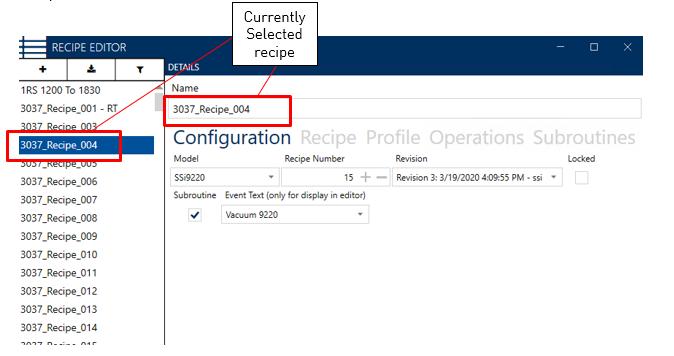
The Details Panel includes the Configuration, Recipe, Profile, Operations, and Subroutines Tabs.
Configuration Tab
The Configuration Tab allows you to select the Controller Model, Recipe Number, Revision, and, if desired, to lock that selection (preventing it from being changed once the recipe is running) or enable the current recipe to be used as a subroutine in another recipe for the GOSUB and JUMP opcodes . Depending on the selected recipe, you can also designate this recipe as a Subroutine, and enter Event Text to be displayed in the Editor
Recipe Tab
The Recipe tab displays the steps (or segments) of the selected recipe.
NOTE: Examples shown below are for recipes created using the Step programmer. Depending on your controller, you may also have the option to use the Segment Programmer. For explanations of recipe programming (including Opcodes) refer to the manual for your controller – or a manual for segment programming.
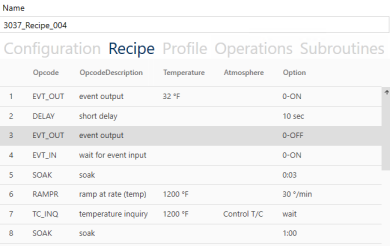
To edit a recipe, double-click on an Step to bring up the step editor.
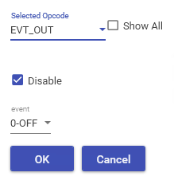
Use the Selected Opcode dropdown menu to select an Opcode for this step and set all necessary parameters. When finished, click “OK.” Your new recipe step will be displayed in the recipe editor (depending on the Opcode you entered, you may need to scroll up and down or use the sorting tabs in order to view the newly-entered step).
For more detailed instructions on building recipes, consult your programmer/controller manual.
Profile Tab
The Profile Tab will display the recipe in graph form. Note that this functionality must be selected in the Options Editor in order to be enabled.
Operations Tab
The Operations Tab allows you to assign your facility’s operations (created in the Operations Editor) to the selected recipe. Select an operation from the dropdown menu, and click + to add it to the list of available Operations. Clicking on an operation in the list will bring up information in the Operation Viewer.
Subroutines Tab
The Subroutines Tab allows you to assign this recipe as a subroutine of another recipe (using the GOSUB and JUMP opcodes). Select a recipe from the dropdown menu, and click + to add it to the list of available recipes. Note that in order to enable this function, the “Subroutine” box in the Recipe panel must be checked.